Help center › How things work
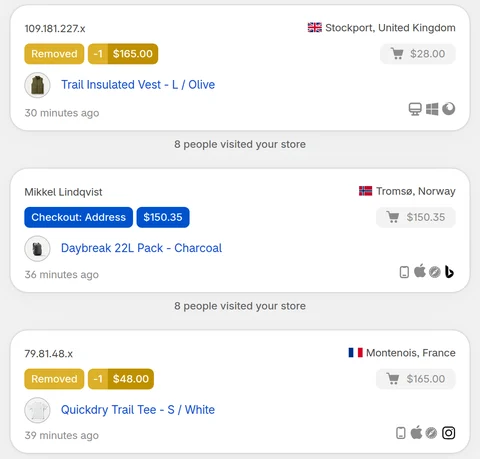
Live View is the page CartSpy opens on. It lists what shoppers do in your store, newest first: each add to cart, cart view, removal, checkout and order, with the shopper's cart at that moment and where they came from.
Each card is one thing a shopper did. From top to bottom:
Between cards, a gray line such as "2 people visited your store" counts the other visitors in that time. Click it to see their top sources and what they did most, such as viewing products or searching.
The status at the top says LIVE while new events come in on their own, or Paused. Click Refresh to load the newest events at any time.
Each card has two buttons:
The same data, per source and campaign over a date range, is on the Analytics page. See Analytics and exports.
Click Filter above the cards to narrow Live View down. You can combine:
facebook visits.While a filter is on, the button reads Filtered. If nothing matches, Live View says "No events match your filters"; click Clear filters to see everything again.
These two settings live in Settings › Live View filters. They hide visitors; nothing is deleted, and orders always show.
These filters also apply to abandoned carts and, from the day you set them, to the Analytics totals other than page views. Why bots add to cart at all: bots and add to carts.
In Settings › Live View:
The Overview page in the menu has a shorter version of Live View next to today's sales, orders, visitors right now, active carts and active checkouts.
| Plan | Cards in Live View | Cart events kept |
|---|---|---|
| Essential | Latest 100 | 7 days, or the newest 1,000 events if that keeps more |
| Advanced | Latest 500 | 30 days, or the newest 10,000 events |
| Pro | Latest 1,000 | 60 days, or the newest 20,000 events |
When you reach the limit, Live View says "You're viewing the latest 100 events" (or 500). Carts that were left without an order are also listed, day by day, in Abandoned carts.
For what Live View is for and how it differs from Shopify's own Live View: seeing add to carts live.
Email support@cartspy.app with a screenshot of Live View and the card you are asking about.