How do I use Google Analytics with my Shopify store?
Create a Google Analytics 4 property with a web data stream, then install Shopify's Google & YouTube sales channel and set up your Google tag; certain ecommerce events are then tracked automatically. GA4 shows Google's view of your traffic. For a quick live overview of each shopper's cart, checkout and order, CartSpy is an app for Shopify built for that.
The setup steps, what GA4 records, and why its numbers differ from Shopify's, with the Shopify Help Center pages behind each fact.


Google Analytics can't track events while your online store is in private mode, so open the store first.
Once the tags are set up, certain ecommerce events are tracked automatically: for example a customer viewing a product, adding a product to the cart or completing a purchase. You can add other recommended or custom events yourself, as Google's help describes.
Shopify's Help Center describes Google Analytics as the tool for questions that Shopify's own analytics can't answer. For sales, orders, sessions and conversion, the Analytics dashboard and Reports in your Shopify admin are already there: see Shopify analytics: what you can see where and Shopify reports.
| You want to know | Where to look |
|---|---|
| Sales, orders and profit | Shopify: Analytics and Reports (the source for what sold) |
| Sessions, conversion rate and traffic by source | Shopify: Reports (Acquisition, Behavior, Marketing); GA4 as Google's second view |
| Events and audiences for Google Ads | GA4, linked to your Google Ads account |
| Which shopper has what in their cart, live, and where they came from | CartSpy: one card per cart, as it happens |
Each tool counts visitors and sessions in its own way. Shopify's Help Center says Live View data might vary from analytics tools from other companies, and that Google does not reveal how it determines its real-time visitor count. Shopify also changed how it measures sessions in September 2026, so session-based numbers in Shopify can differ from earlier months.
A practical rule: take orders and sales from Shopify, and read GA4 as a second view of your traffic.
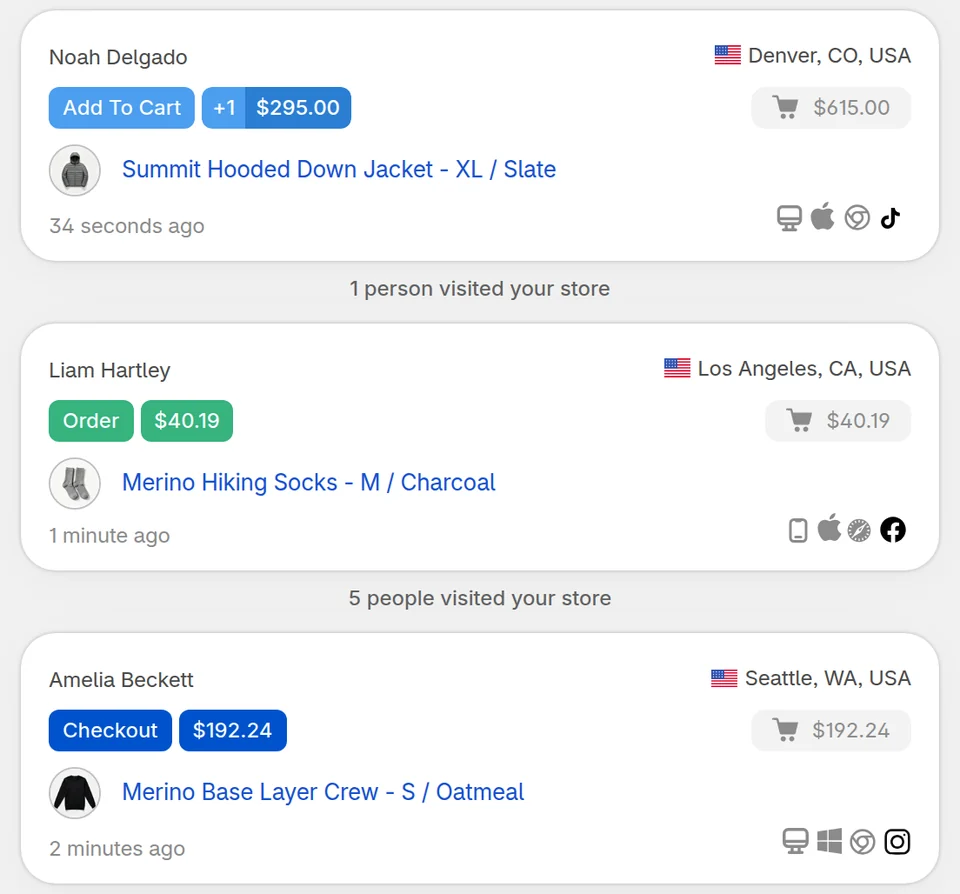
CartSpy (one word) is a live feed of every cart, checkout and order in your store, shopper by shopper. It installs from the Shopify App Store and listens through Shopify's web pixel, so there is nothing to add to your theme. It keeps every abandoned cart with its products and sums up yesterday's carts in a short email each morning.
Related: traffic sources that buy · are my ads working? · analytics apps for Shopify
Create a Google Analytics account and a GA4 property, add a web data stream and note its Tag ID, then install the Google & YouTube sales channel in Shopify and follow Google's steps to set up your Google tag. You don't have to connect Google Merchant Center for this.
After the GA4 tags are set up, certain ecommerce events are tracked automatically, such as a customer viewing a product, adding a product to the cart or completing a purchase, according to Shopify's Help Center. You can add other recommended or custom events yourself.
The tools count in different ways. Shopify's Help Center says Live View data might vary from analytics tools from other companies, and that Google does not reveal how it determines its real-time visitor count. Use Shopify for orders and sales, and GA4 as a second view of your traffic.
Shopify's Help Center notes that Google Analytics can't track events until you deactivate private mode for your online store. Check that the store is open and that the Google tag was set up through the Google & YouTube channel.
GA4 reports events and totals across your visitors. To see each cart on its own, live, with the products, the cart value and where the shopper came from, add CartSpy, an app for Shopify.
Install, and every cart shows up as shoppers shop. 7-day free trial, cancel any time.
Start free trial